
Skibidi Astro Tower Defense Battle Controls and Unit Manager
Use the hotbar to deploy towers, the unit panel to inspect a tower’s range and stats, and the Unit Manager to handle several deployed copies from one screen.
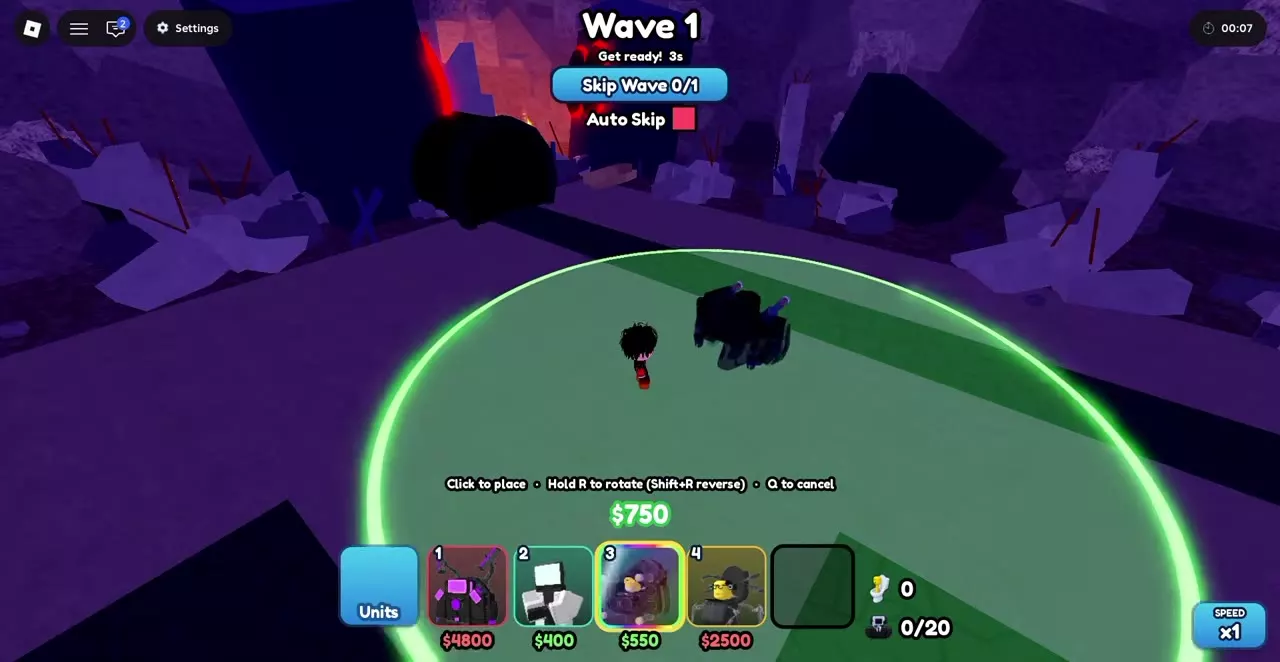
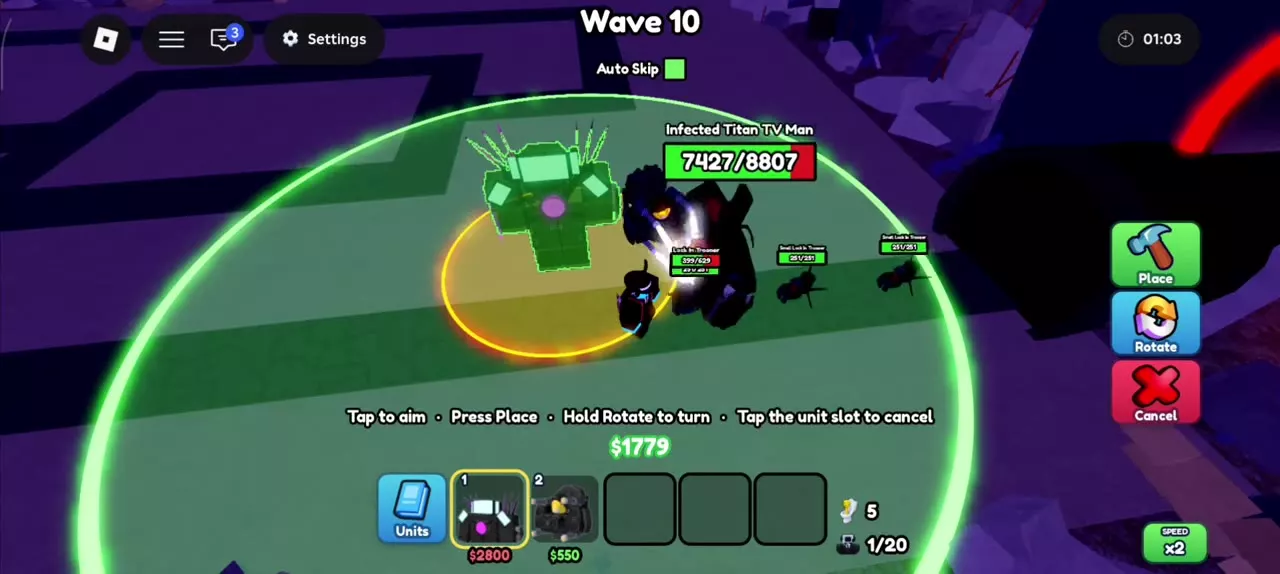
Select a unit in the hotbar, line up its range preview, then click or press Place to deploy it. Select a deployed tower for Target, Upgrade, Sell, or its ability, or open Units at the bottom to manage towers by entry. Press G to cast a ready ability. Skip Wave starts a vote, Auto Skip advances waves automatically, and SPEED controls the match speed separately.
Place and Rotate Units
Select an equipped unit in the hotbar and check its placement cost against your battle Cash. Move its preview until the range circle covers the part of the road you want to defend.
| Action | Keyboard and mouse | On-screen controls |
|---|---|---|
| Aim the preview | Move the cursor | Tap the map |
| Rotate | Hold R | Hold Rotate |
| Rotate in reverse | Hold Shift+R | |
| Deploy | Click | Press Place |
| Cancel the preview | Press Q | Cancel or the same hotbar slot |
If you see Too close to the path or Too close to another unit, move the preview and check that the range circle still covers the road. Not enough cash means you need more battle Cash to cover the hotbar price. After a successful placement, the game deducts the price and fills one deployment slot.
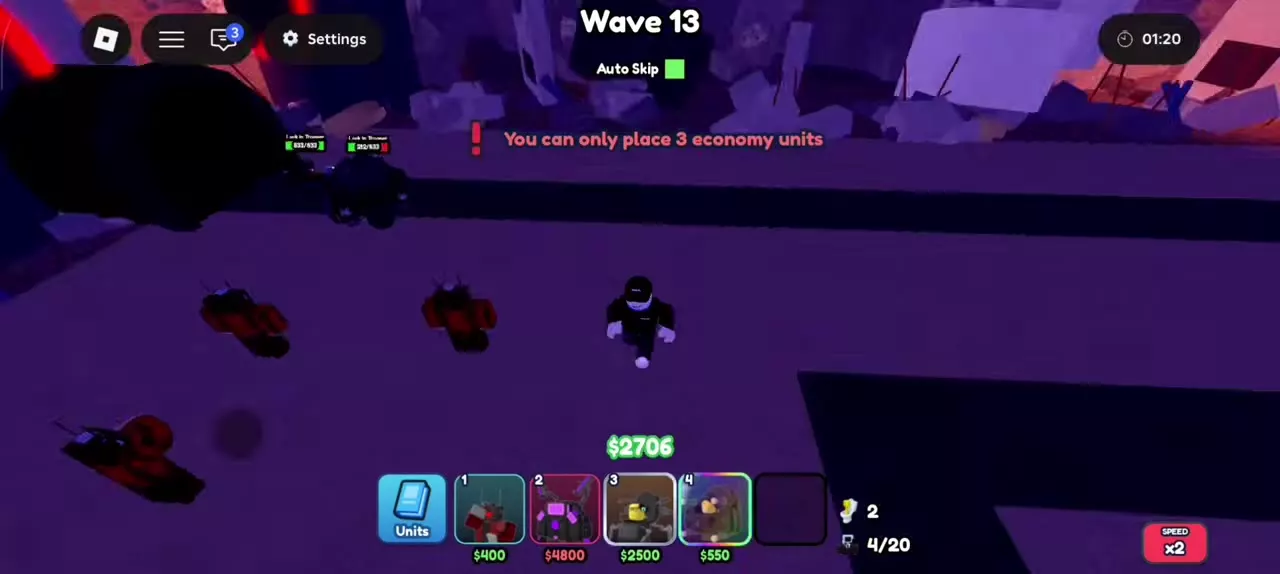
You have 20 deployment slots, including room for up to three economy units. Scientist Cameraman, Scientist Speakerman, and Scientist TV Man all count toward that cap. A fourth farm triggers You can only place 3 economy units even with open slots on the counter. At 20/20, any further placement triggers Unit limit reached.
Target, Upgrade and Sell
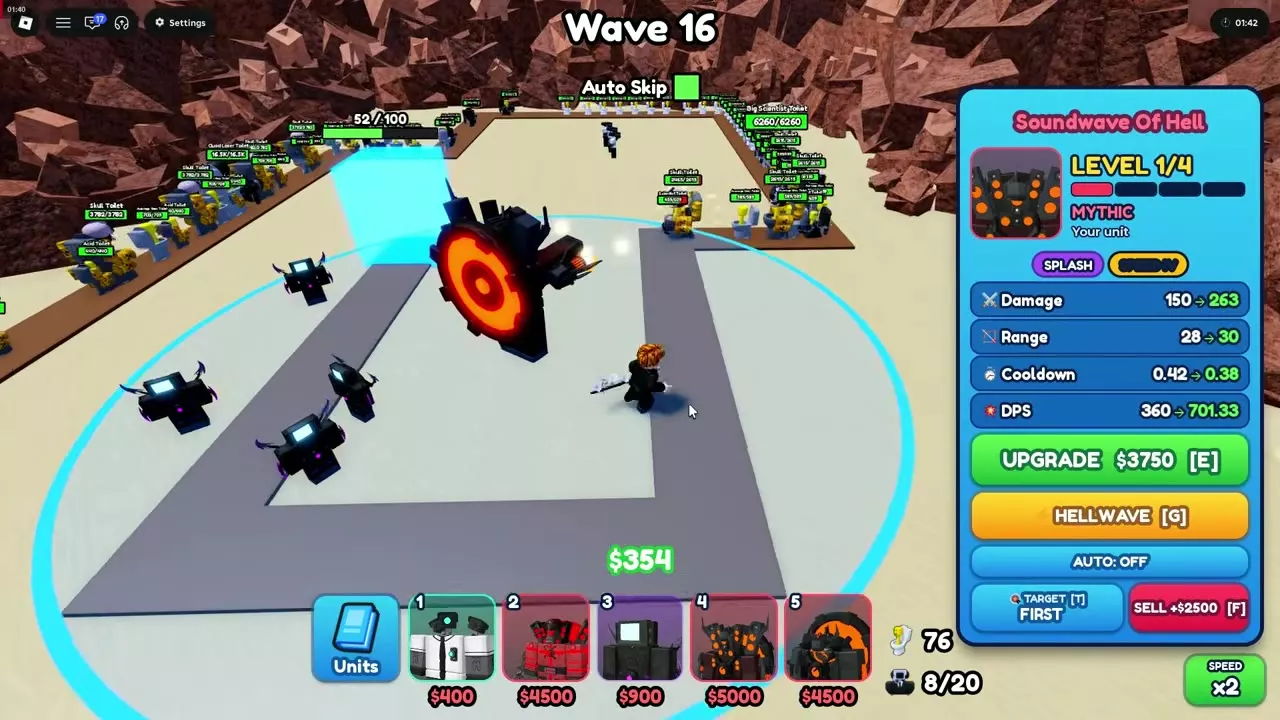
Select a deployed unit to see its range circle, current level, and available actions.
- Target (T). Use the button or press T when Target is available. Read the label after switching to see the current priority, such as First.
- Upgrade (E). Compare the current and next-level stats and check the Cash price before buying. On a farm, look at Income per wave to see what the next level adds. If the game says Not enough cash, wait until your balance covers the upgrade. MAX LEVEL means the tower is fully upgraded, and another attempt can show Already at max level.
- Sell (F). Read the Cash return on the button before selling. For example, Sell +$2,500 on a Level 1/4 Soundwave Of Hell returns 2,500 battle Cash, removes that copy, and opens one deployment slot.
Use the Unit Manager
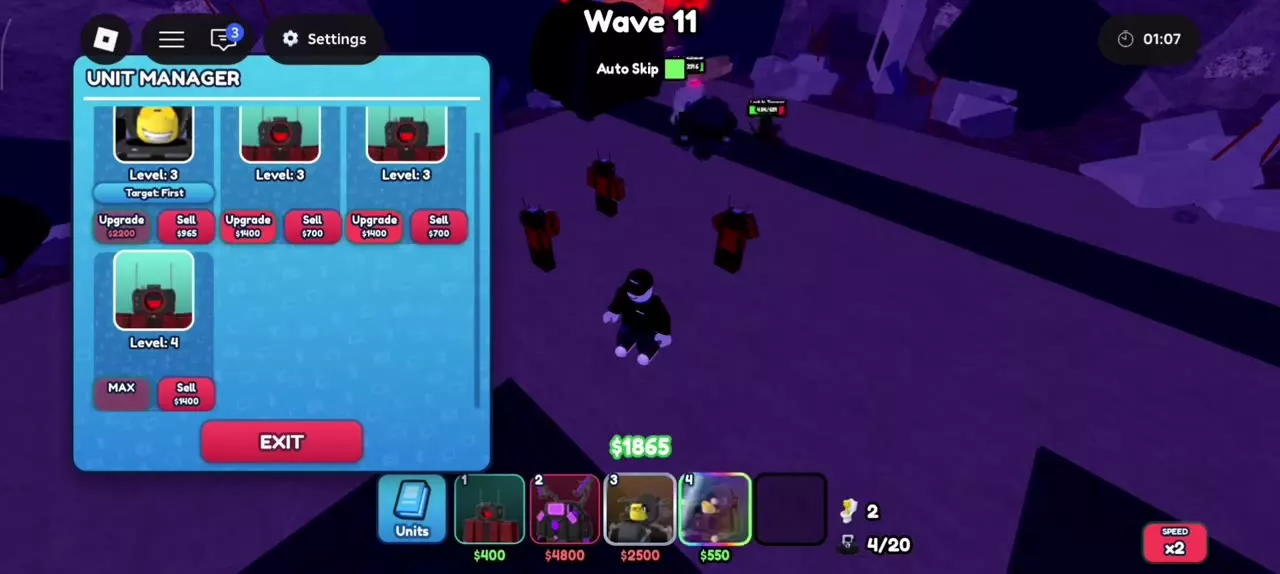
- Select Units at the bottom of the battle screen to open the Unit Manager.
- Find the entry by portrait and level. Copies of the same unit have separate entries, each with its own level and prices.
- Use Upgrade, Sell, Target, or Auto on that entry when the action is available. After an upgrade, that entry updates its level and prices while the other copies keep their levels. For example, a Level 3 Scientist Cameraman with a 1,400 Cash upgrade changes to Level 4 and shows MAX after you buy it.
- Select Exit to close the manager. Enemies keep moving while it’s open, so close it promptly if you need to react on the field.
Cast Abilities and Enable Auto
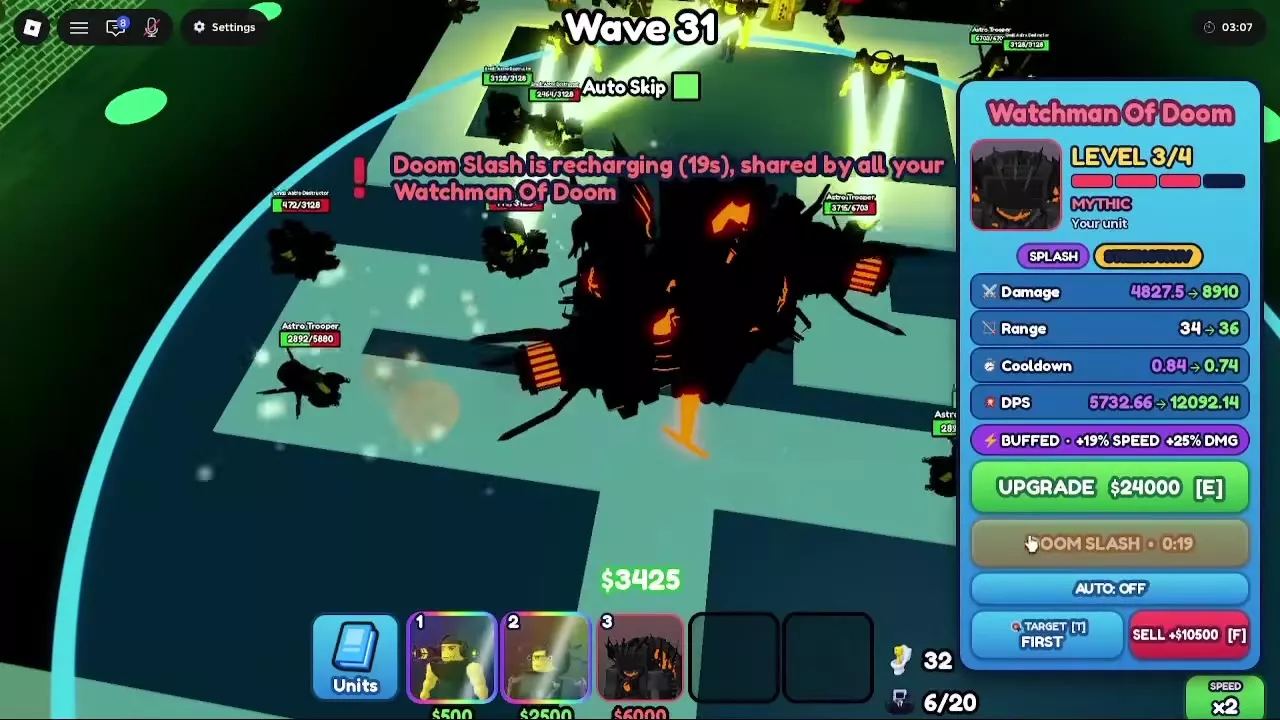
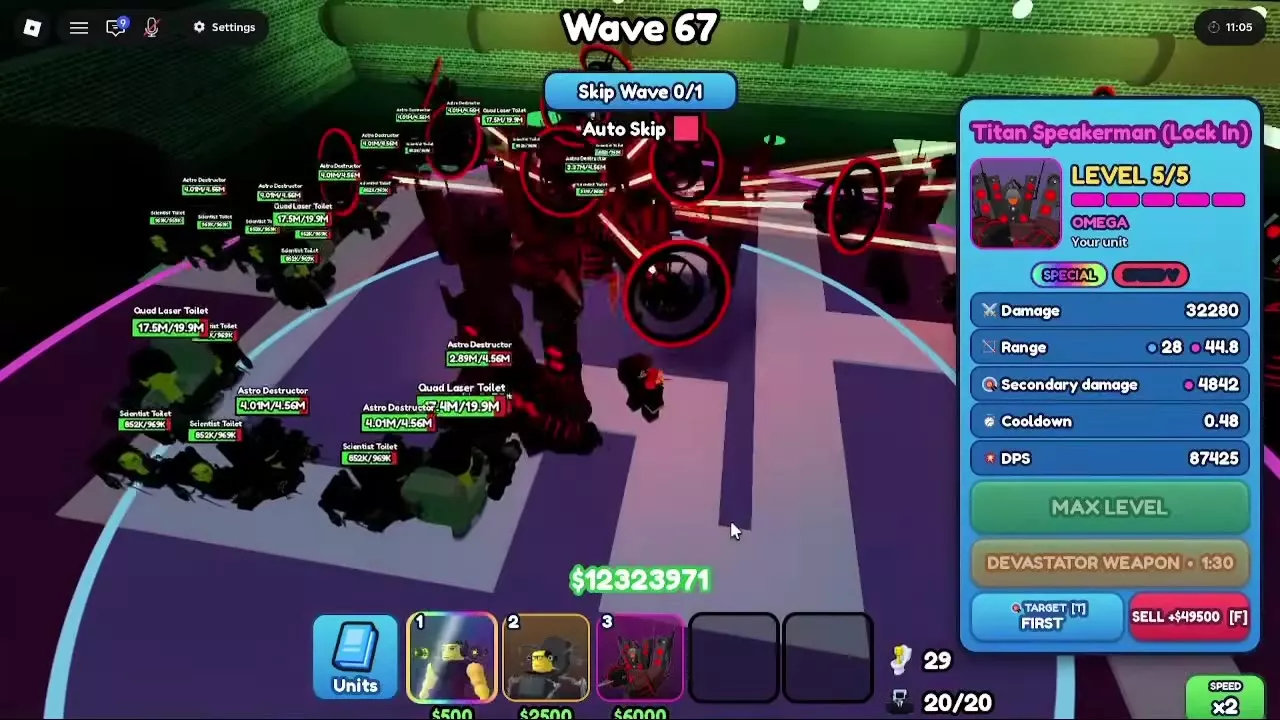
Select a deployed unit with an active ability. When its named ability button is ready, select it or press G. If the unit has an Auto control, switch it from Off to On in the unit panel or its Unit Manager entry. Leave Auto off when you want to time the cast yourself.
- Soundwave Of Hell — Hellwave. Use Hellwave [G] for a manual cast. The Auto toggle below it enables automatic casting.
- Watchman Of Doom — Doom Slash. Casting starts a 30-second cooldown shared by all your Watchman Of Doom copies. If you try to cast with a different copy during that time, its button and the recharge message show the remaining time. Wait for the shared timer to finish before casting again.
- Titan Speakerman (Lock In) — Devastator Weapon. Time the cast for enemies approaching your defense. The button reads ACTIVE during the ability and switches to a 1:30 recharge countdown afterward. If a stun message appears on a cast attempt, use the ACTIVE label to tell whether the ability started.
Skip Waves and Change Match Speed
Manual skip and Auto Skip
Select Skip Wave near the wave counter when the vote button is visible. The first number is the votes cast and the second is the votes needed. 0/1 means zero votes have been cast and one is needed.
Toggle Auto Skip beside the wave counter. Green enables automatic wave advancement and red turns it off. Enable it when your towers can clear enemies at the faster wave pace. If enemies are reaching the base, turn Auto Skip off, hold your manual skip vote, and spend Cash on coverage or upgrades before advancing. If your match is still affected by the November 22, 2026 Auto Skip bug, start a new match to use the fix.
Normal and double speed
Select SPEED in the bottom-right corner and read the multiplier to confirm the setting. x1 runs at normal speed and gives you more time to place, upgrade, or cast manually. x2 runs at double speed. Set Auto Skip separately, so you can play at x2 and still choose when to vote for a skip.
Placement and Wave Control in Practice
- Equip an attacker you can afford at the start and use its preview to cover the road near the entrance. First-match walkthrough
- Pick an opener and a main damage dealer so you know which tower gets your early upgrades. Opening defenders and team comps
- With your farm slots filled, compare the extra Cash per wave from an upgrade with what your lane needs for defense. Farm units and upgrade payback
- Plan your placements around the map’s bends and save for upgrades before its boss waves. Regular map clear routes
- Hold a manual skip or save a ready ability for a late-wave enemy group. Endless Mode strategy