
Skibidi Astro Tower Defense Marketplace Guide
The Marketplace lets you buy specific copies of units from other players and list units you own for Gems. Check the variant and trait when comparing offers, then use the fee shown in Market to work out what you’ll keep from a sale.
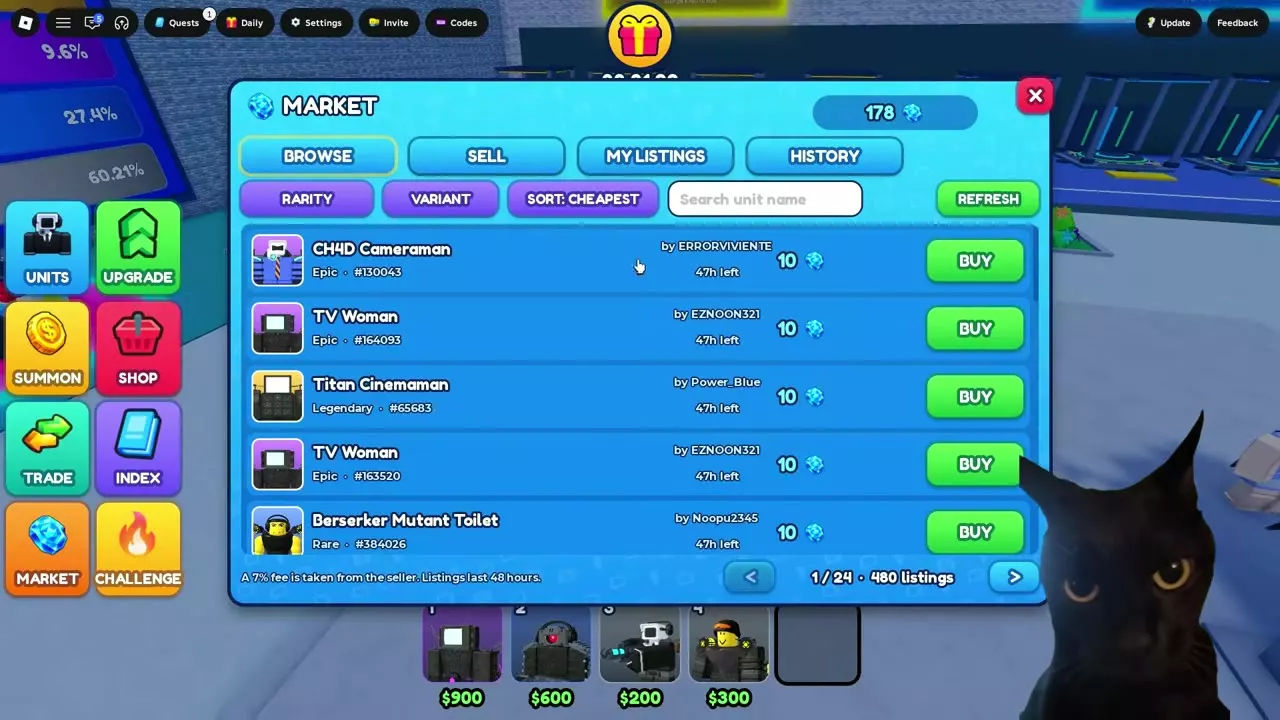
Open Market on the left side of the lobby. In Browse, find the copy you want and confirm its Gems price. In Sell, choose an owned unit and set a price for a 48-hour listing. My Listings lets you claim Gems after the unit sells or cancel an active listing to get the unit back. Use the seller fee displayed in Market to estimate your payout.
Browse, Filter and Compare Listings
Open Market → Browse from the lobby’s left menu. Enter the full unit name or part of it. Use Rarity to narrow the results to a tier such as Mythic, Exclusive, or Omega. Under Variant, choose Any to see all forms or Normal to see standard copies.
Sort by Cheapest to start with the lowest asking price or Newest to see recently posted offers first. Press Refresh to update the results and use the arrows at the bottom to change pages. Each listing shows the seller, time remaining, price in Gems, and a Buy button.
For Titan Speakerman 3.0, select Mythic, search titan, and sort by Cheapest. Offers at 1,250 Gems included copies with Range II, Range III, and Strength III. If you’re shopping for extra range, the Range III asking price matched Range II in that set of offers. Check the form and trait before choosing between rows with the same price.
Buy the Exact Copy You Want
- Open the listing for the copy you want. Check its variant, trait, seller, and asking price, and make sure you have enough Gems. If you want a Rainbow DJ Toilet, look for the Rainbow form on the card.
- Press Buy on the listing. Check the unit, seller, and Gems amount in the Buy Unit dialog, then press Buy again to confirm. A successful purchase displays a confirmation and deducts the agreed price from your Gems.
- Open Units and find the purchased copy. Select it to equip it. If all five slots are filled, unequip one unit first. A green check on the card and the matching icon in the hotbar confirm that the new copy is equipped.
| Unit purchased | Trait | Gems paid |
|---|---|---|
| Titan Cinemaman | — | 12 |
| Soundwave of Hell | Speed IV | 690 |
| Recorder of Death | Strength I | 800 |
The 12-Gem Titan Cinemaman went into the buyer’s open fifth slot after they equipped it. The Soundwave of Hell and Recorder of Death purchases are examples of what buyers paid for those specific Mythic copies.
Set an Asking Price and List a Unit
- Compare active offers in Browse for the same unit, variant, and trait. For example, two Scientist Speakerman offers asked 349 Gems for Farm II and 400 Gems for Farm IV. Use the offer with the matching trait as your starting point when pricing your own copy.
- Read the seller fee at the bottom of Market. Estimate your net Gems by multiplying the asking price by
1 − (seller fee ÷ 100), using the displayed percentage. The fee comes out of the seller’s proceeds when the unit sells. - Open Market → Sell, choose the copy you own, and set your asking price in Gems to publish the listing. Listings last 48 hours.
| Fee displayed in Market | Sale price | Fee deducted | Net proceeds |
|---|---|---|---|
| 7% | 1,000 Gems | 70 Gems | 930 Gems |
| 5% | 1,000 Gems | 50 Gems | 950 Gems |
Claim Gems, Cancel a Listing or Open History
- Claim a sale. Open Market → My Listings after the unit sells and press Claim to collect your Gems.
- Take down an active listing. Find it in My Listings and choose Cancel. The unit returns to your inventory.
- Review Marketplace history. Select History at the top of the Market window.
Unit Values and Direct Transfers
Use the Gems figure on a unit card as an estimate, the Browse price as the seller’s asking price, and a completed purchase as the amount a buyer paid. For example, one Scientist Cameraman card showed an estimate of 195 Gems while the seller asked 250 Gems. Compare more card estimates, listings, and completed purchases in the Unit Value List.
To exchange units with a specific player who’s online, use Trade. To send a gift, use Mailbox and make sure the recipient has gift receiving enabled. Direct Trading and Mailbox Gifts